











689d 23h
📏 Scaling Pages in zzTakeoff
🎯 Overview
- Two methods available for scaling pages:
- 🤖 AI-powered automatic scaling
- ✋ Manual scaling using known dimensions
🤖 Method 1: AI-Powered Automatic Scaling
- Find the Scale on Selected page in the project
- Highlight the Scale by drawing a Window around the Scale

- From the Context Menu Click "Scale"
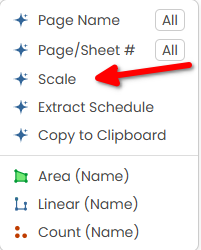
- Wait for AI analysis of the drawing
- AI detects standard dimensions
- Sets the appropriate scale
- ✅ Check scale is set in the Scale Dropdown from the top ribbon toolbar or

- Check for Cross Hair
 on the Left Hand Side
 - Verify scale accuracy using a known dimension (both Vertical & Horizontal is recommended)
✋ Method 2: Manual Scaling
- Select your target page
- Click the "Scale" tool in the top ribbon toolbar

- Find a known dimension on drawing
- Scale the drawing:
- Enter known dimension and click start
- Click start point of dimension
- Click end point of dimension
- For more precision repeat this process for both Horizontal & Vertical measurement
- It is recommended to Verify using different known dimension using the dimension Tool

📹 Video Tutorial
💡 Tips for Success
- 📋 Always verify scale before starting take-offs
- 📏 Use longest available dimension for manual scaling
- ⚠️ Remember different pages may have different scales
You must be logged in to post replies. If you don't have an account you can signup here.