Feature Requests
Move Function
Just curious - why is the move function counts not the same for linear, area takeoffs? (ie you can click and drag anywhere on a count takeoff to move it, but on areas and linear you need to be on the arrow?)
I think they should function as the count takeoffs do. Since the move arrow is centered about the takeoff, large takeoffs can be difficult to line up again if they were inadvertently moved. Or have a keyboard shortcut for moving a takeoff.

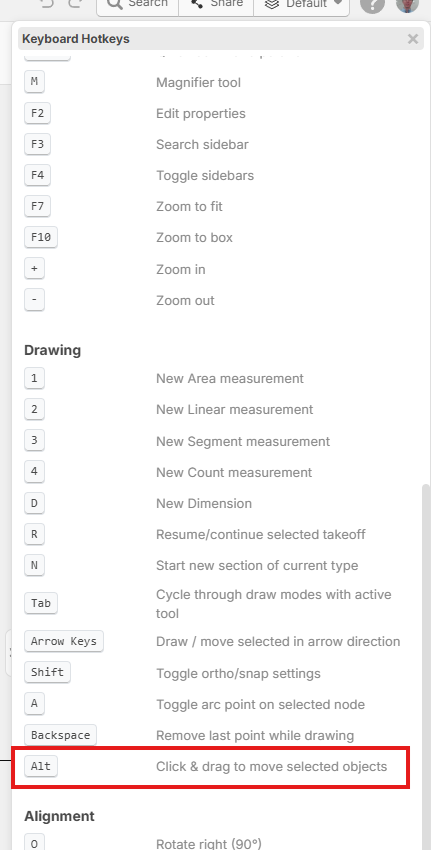
Hey Tim, that behavior is intentional because we didn't want users accidentally clicking and dragging an Area/Linear without realizing it. If you want to click and drag for Area/Linear, we allow users to hold "ALT", and then the click and drag behavior works the same.
%22%2F%3E%3Ctext%20x%3D%2232%22%20y%3D%2233%22%20text-anchor%3D%22middle%22%20dominant-baseline%3D%22central%22%20font-family%3D%22Arial%2C%20sans-serif%22%20font-size%3D%2226%22%20font-weight%3D%22600%22%20fill%3D%22%23fff%22%3ETL%3C%2Ftext%3E%3C%2Fsvg%3E "Tim Lotterhand")
ahhh sorry about that, i didnt see that on the keyboard shortcuts. thank you!
All good! I'll see if the team can add that hotkey to the keyboard shortcuts 🙂
%22%2F%3E%3Ctext%20x%3D%2232%22%20y%3D%2233%22%20text-anchor%3D%22middle%22%20dominant-baseline%3D%22central%22%20font-family%3D%22Arial%2C%20sans-serif%22%20font-size%3D%2226%22%20font-weight%3D%22600%22%20fill%3D%22%23fff%22%3EKP%3C%2Ftext%3E%3C%2Fsvg%3E "Kory Podgaysky")
regarding this, "Since the move arrow is centered about the takeoff, large takeoffs can be difficult to line up again if they were inadvertently moved", right click, select move, and then you can grab any area on the objects you need to move. You can grab the end of a line using shift to snap to the end of that line, and then move it to line up with the end of another line by using the shift snap again.
👍1thank you!

Yeah that ALT trick I keep forgetting! Thats a great keyboard shortcut that would make the top 3 in my book. Besides the standards of copy/paste/enter/escape.
1. N new condition of selected object.
2. D for dimension
3. Alt to move things.
👍2
Thanks for the input. We'll add the Alt + Drag to the Hotkey list. This will go out with the next minor update: