


 Product Updates
New Update: Dark Mode, Worksheet, Box Mode, Plan Versioning, Auto Name & Scale Pages, Plan Thumbnails, Inheritance, etc.
Check out our videos covering the new features:
- Feature Updates - Highlights Video
- Feature Updates - Details Video
- Also, you can check out our Training Videos page for more specific videos on the key features
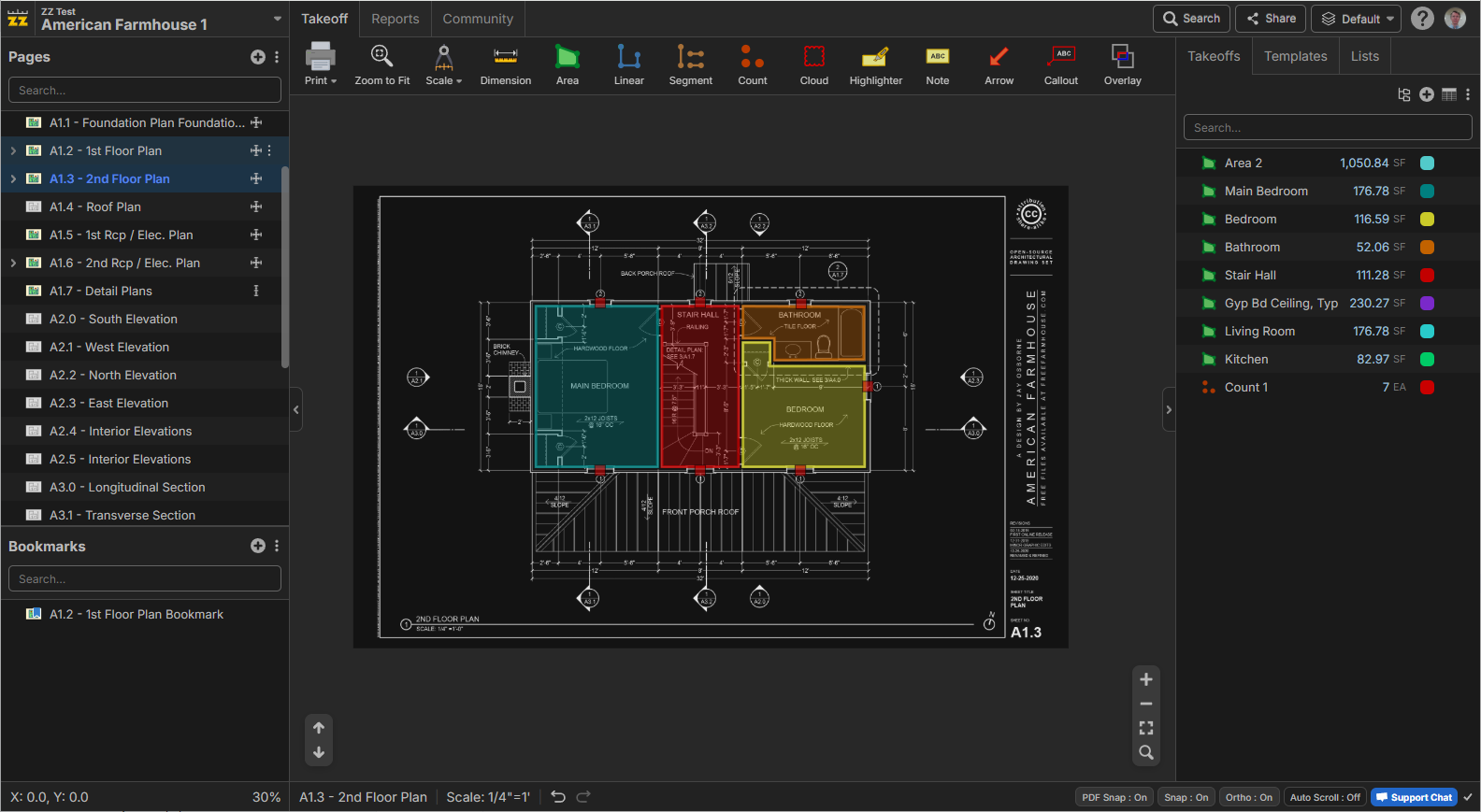
Dark Mode
With the ability to invert plan colors as a separate option, also. Check in Settings > Appearance to enable these settings.
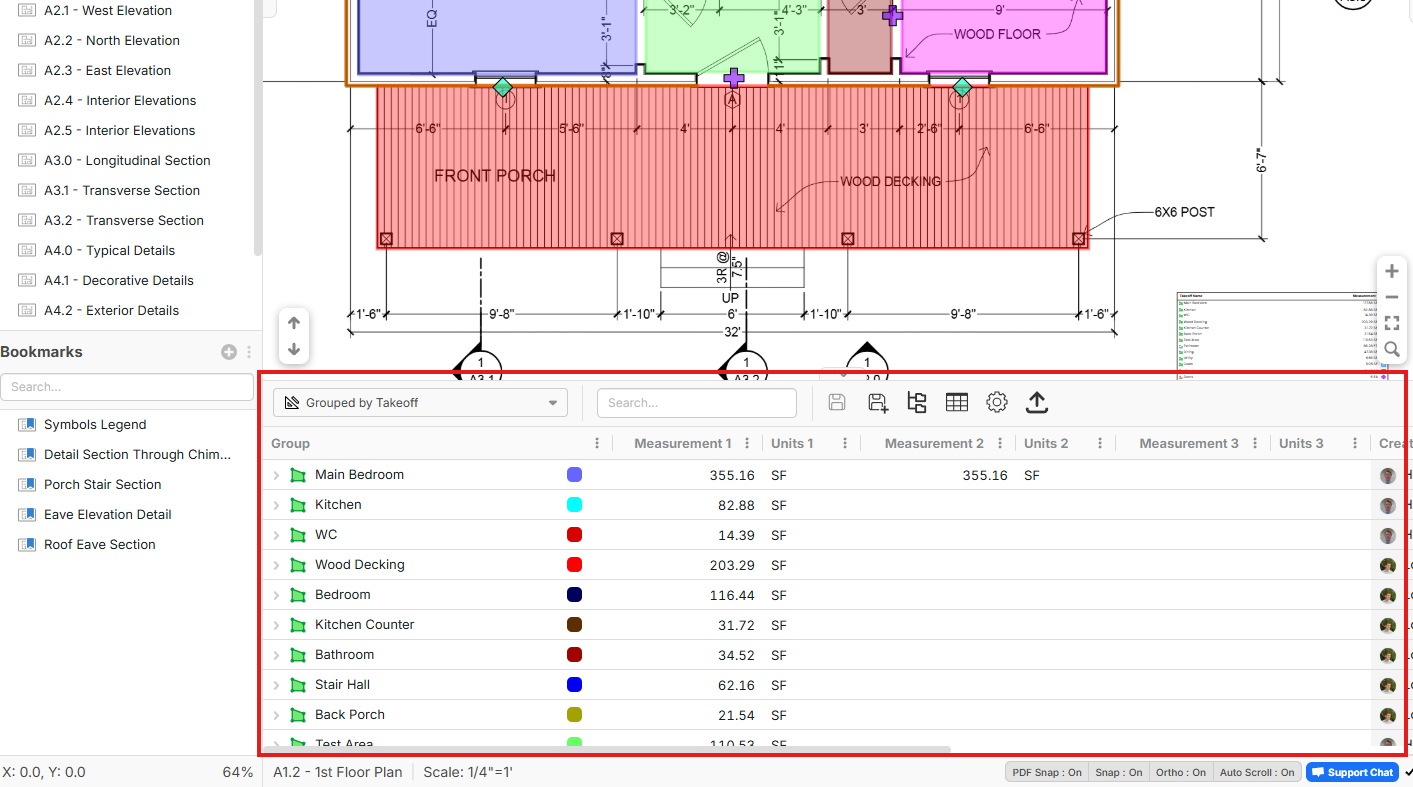
Worksheet
Across the bottom of the page while doing takeoff, with the same view as in reports. It's like a report preview. You can customize the data sorting/grouping very specific to your needs while you perform takeoffs.
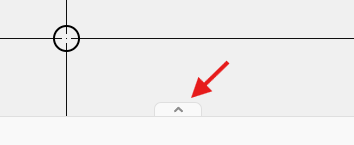
To show/hide the worksheet, click the expand/collapse button at the bottom of the image area:
Box Mode
You can now more easily takeoff rooms with box mode. Drawing overlapping boxes auto merges them into the same area. In this mode, hold CTRL while drawing a box to cutout or chop from the edge of the box. Press Tab hotkey to toggle between box mode and point to point mode. Box mode can be used for area or linear takeoffs.
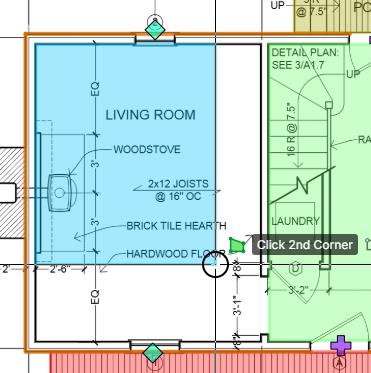
When starting a takeoff for area or linear, you can decide the mode before you start takeoff in the lower left of the popup. You can also customize your templates so that box mode auto activates for specific templates using this same setting in the lower left of the popup.
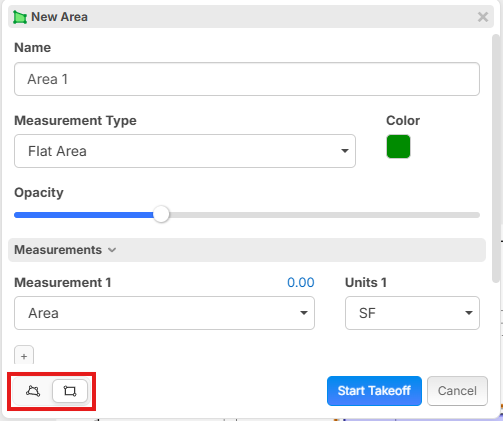
Merge Areas
If you've drawn 2 overlapping areas you can now merge them.
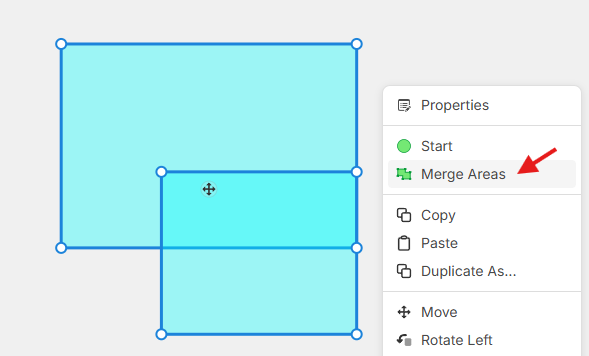
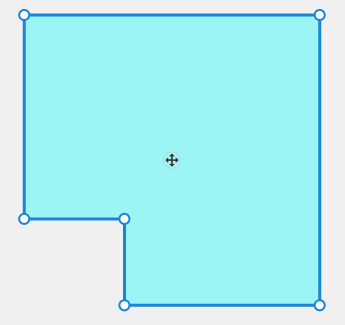
After merge:
Plan Versioning
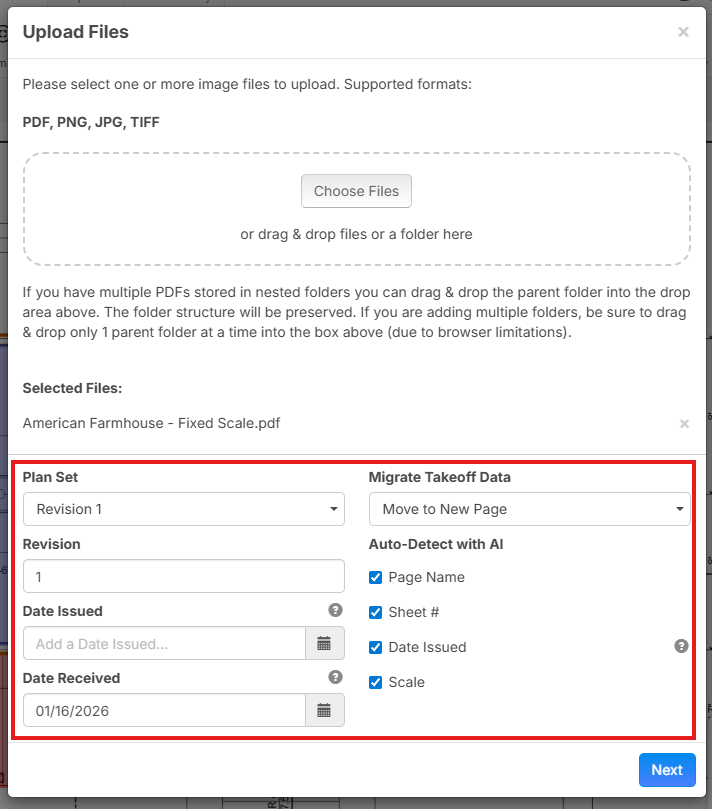
Now when you upload new images, you have the option to attach those images to a Plan Set, and assign a revision #. You will be given the option to migrate old takeoff data to the new pages. This is in early stages, so there will be lots more additions for filtering pages by plan set, etc.
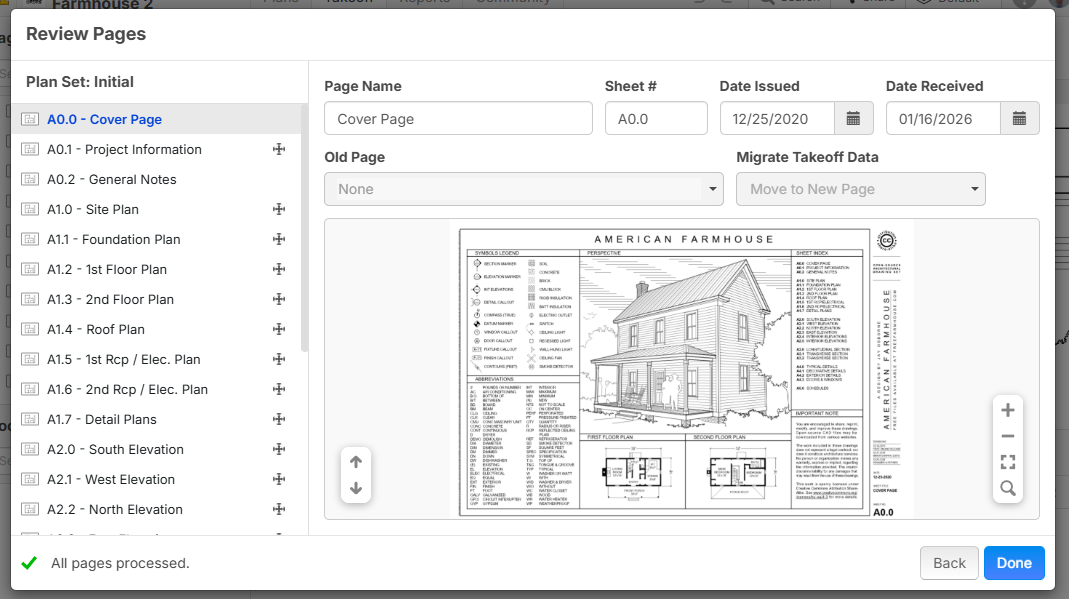
Automatic Page Name & Scale / Review Pages
Now, when you upload new plan pages, they will auto rename and scale (without the need to select where to find the name or scale on the pages). Note: pages with multiple scales on the page will not auto scale (intentionally).
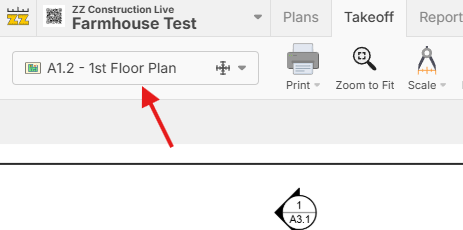
Pages Dropdown in Toolbar
When you collapse the left sidebar for pages, you will now see an easy dropdown in the toolbar to change pages. This can save a lot of real estate for users who want the plan image to use more of the screen.
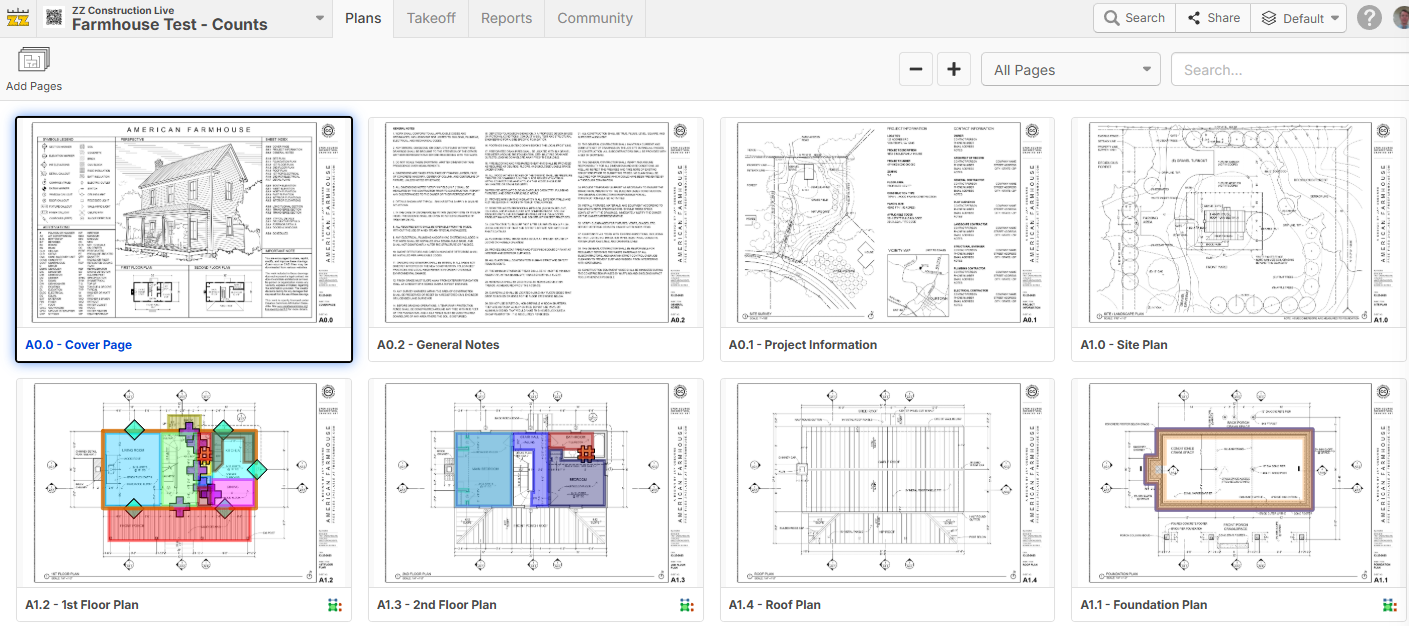
Plans Tab / Thumbnail View
We've added a "Plans" tab with thumbnail view for easily visualizing your plan pages. This is in early stages and we will be adding more here.
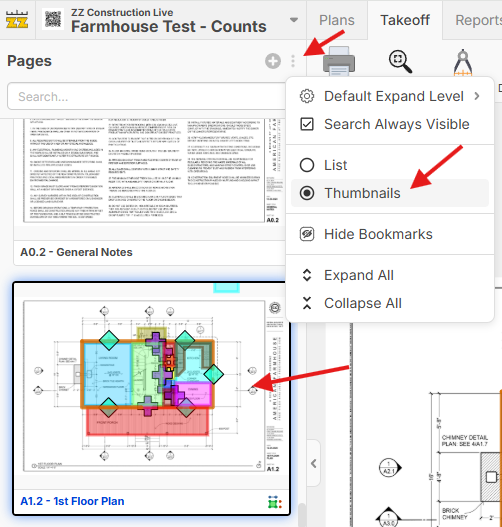
You can also toggle the left sidebar of the "Takeoff" page into Thumbnail view if you want (by clicking the ... menu at the top right of the pages sidebar by the +).
Additional Point Count Symbols
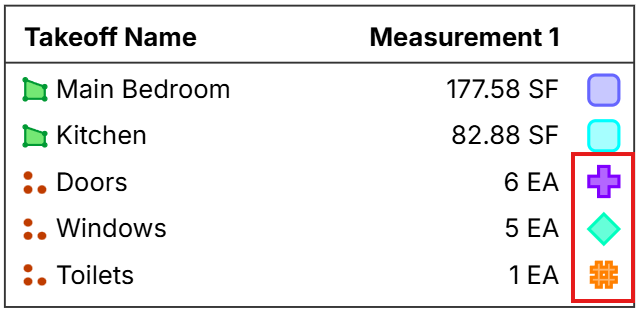
We now have 10 point count symbols built in (previously had 5). We will be adding a lot more in the future as well as custom point counts (unlimited).

Symbols for Point Counts on Legend
As users requested, the legend now shows the shape of point counts.
Bulk Update Properties
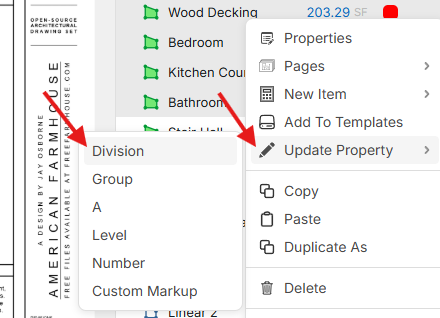
If you multi-select takeoffs or items in the sidebar, you can update multiple at the same time.
Sloped Dimension Lines
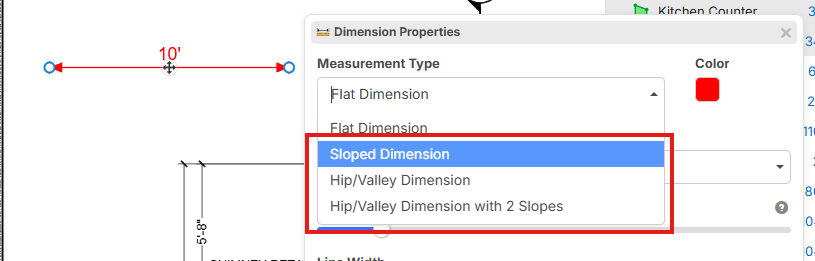
You can now slope dimension lines similar to a linear or segment takeoff:
Duplicate As and Fill Cutouts
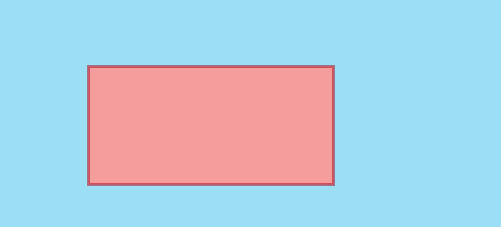
You can right click on any takeoff and duplicate it as another takeoff type. This works also for filling in cutouts.

After it's filled with another area:
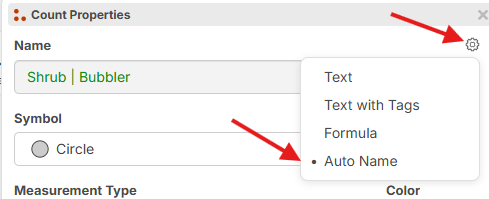
Auto Name Mode for Takeoff Name Property
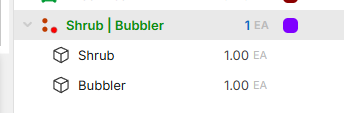
You now have the ability to auto name takeoffs based on their child items. This is particularly useful if you drive your takeoffs & templates more at the item level, and want the takeoffs to name themselves.
If you add or change out the items, the takeoff changes name automatically to match.
Note: we also shifted what was previously Formula mode to Text with Tags mode (to be named more properly). Then we built a new true Formula mode which can do math calculations and format using functions from Math.js. We will be adding more documentation and videos for formula mode in the future.
Manual Entry Takeoffs
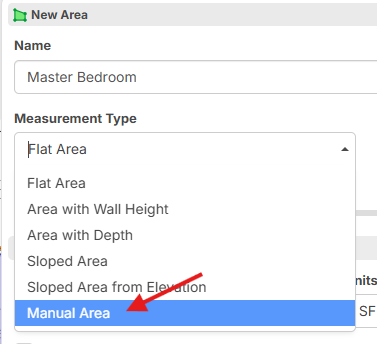
If you choose "Manual Area" or "Manual Linear", etc. you will then be prompted to manually enter in those values instead of having them be calculated from points on the page. Then if this manual takeoff has child items, they will use these values for the formula calculation.

[Depth.Ft] or [Depth.In] or [Depth:Dimension]
Now it's easier to put formatted dimensions as part of the name.
For example, if you have a dimension of 2' 6"
[Depth.Ft] will insert 2
[Depth.In] will insert 6
[Depth:Dimension] will insert 2' 6"
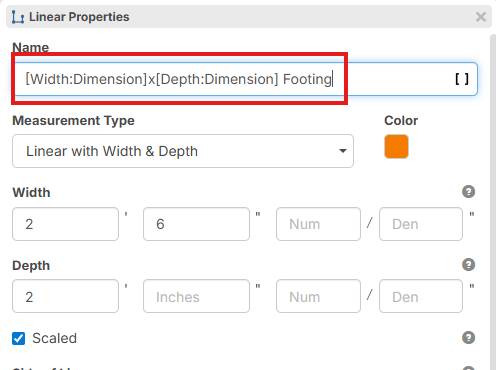
Example of what the above text will calculate as (in Text with Tags mode):

Formula Traversal / Parent, Sibling, and Child Property Access
Now you can access parent, sibling, and child properties more easily.
- [../Some Property on Parent]
- [./Some Sibling/Some Property on Sibling]
- [Some Child/Some Property on Child]
Note: in a formula for an item, measurements such as [Area] will automatically pull from the parent takeoff area without the need for [../Area]
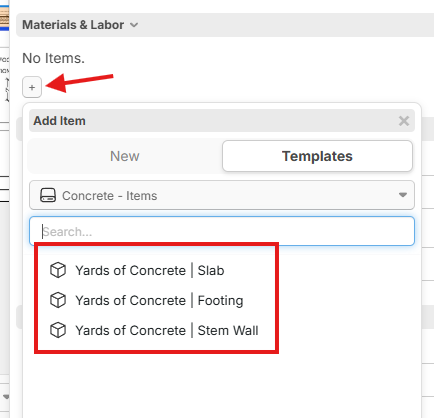
Materials & Labor - Add Items On the Fly
Much easier for building an assembly as you go.
Quick Search / Spacebar Hotkey
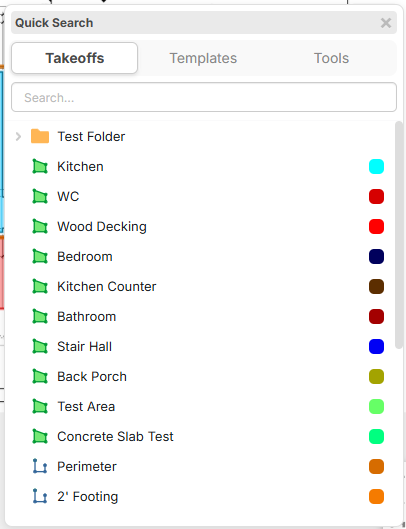
Just hit Spacebar for a quick popup of existing takeoffs that you can continue with. You can also switch to the templates or tools to takeoff from those.
Tip: pressing space from this screen again (while the search box is empty) will toggle between tabs for quick navigation.
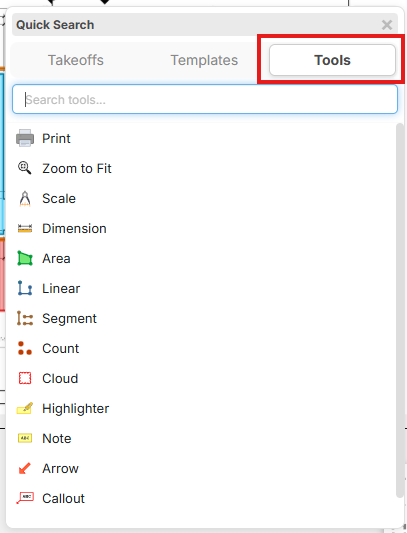
/ Slash Command Hotkey
This is the same popup that the space key shows, but defaults directly to tools. We will be expanding this with other commands & scripts.
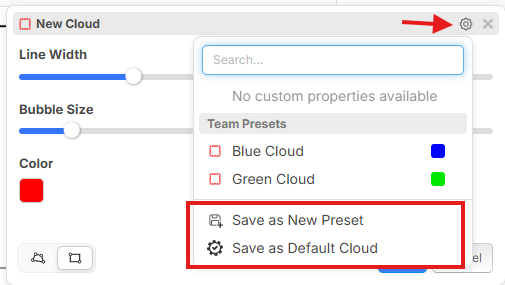
Presets & Save as Default for Tools
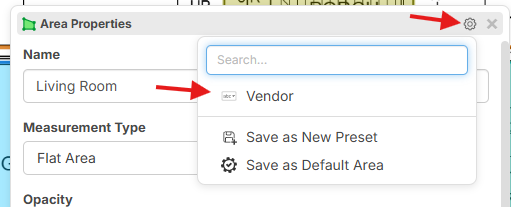
Now you can build your own presets (similar to templates) for all of the annotation tools (and takeoff tools).
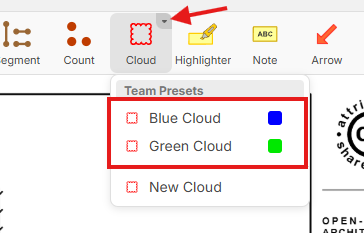
To create a new preset, just click the gear at the top of the properties window, and "Save as New Preset". You can create presets that are shared among your team or for your own personal use. You can also easily "Save as Default" which will be the default that is used when you click the button on the toolbar for a specific tool.
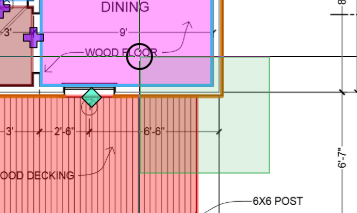
Selection Box by Intersection
As with many CAD applications, we now support selection of anything the box intersects if you select from lower right (mouse down) to upper left (mouse up). The selection box will be green instead of a bluish color.
Ortho Snap to PDF Points
If you hover over a PDF point for about 0.5 seconds it will change color to blue which indicates it can now snap Ortho to that point.
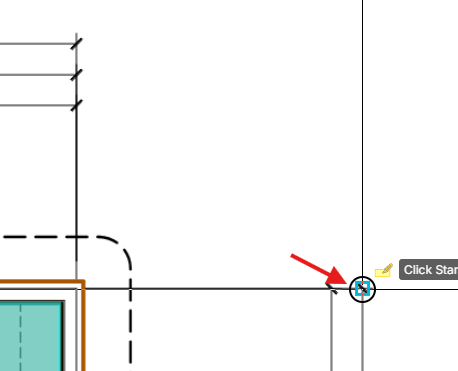
In this example, I can click a point ortho to 2 PDF points that I hovered over briefly.

Reports - Edit Properties
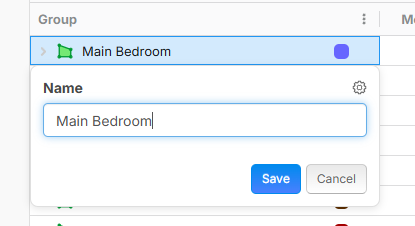
Now it's much easier to edit properties from reports or the worksheet
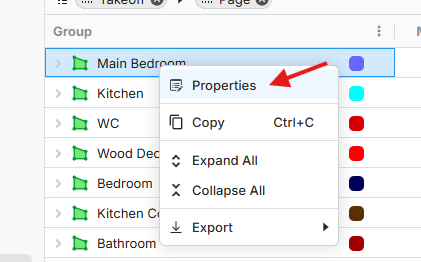
If you double click a cell or just start typing it will allow you to edit on the fly. We will be adding more spreadsheet-like feel as we go. Our grid is capable of a lot, but we need to add more safety measures (for the data) in place before unleashing all that the grid is capable of. Lots of future improvements will be coming for the grid.
Reports - Left Sidebar Collapsible
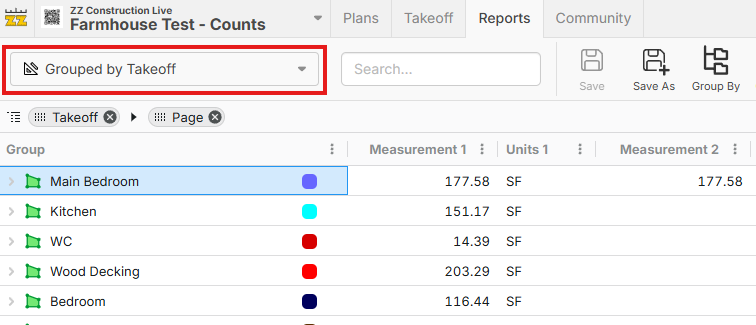
Many users have asked for more real estate on the reports tab. Now you can collapse the left sidebar, and access the different report views with this dropdown:
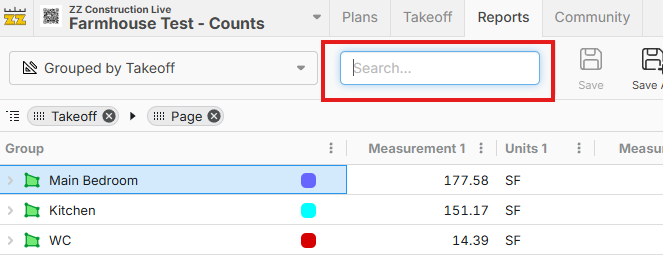
Reports - Quick Search
Reports - Column Settings
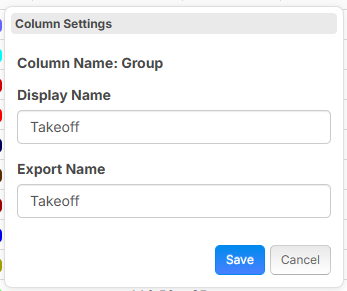
We have added the ability to adjust column names in the grid and also the column names for export.

In the Column Settings popup, you can control column names Excel and CSV exports. This is great for building custom report view that export to specific apps.
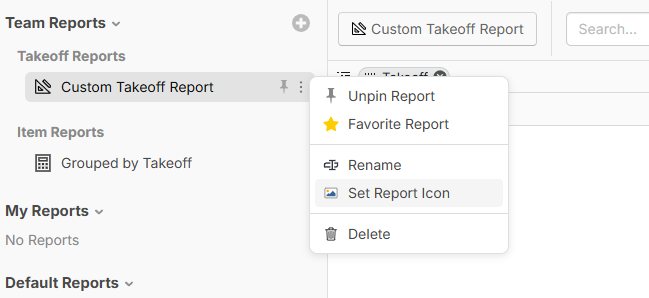
Reports - Custom Icon, Pin, & Favorite for Report Views
If you're building a report view that exports to a specific app, it's nice to change the report view icon accordingly. You can also Pin (into the toolbar) or flag specific reports as Favorites.
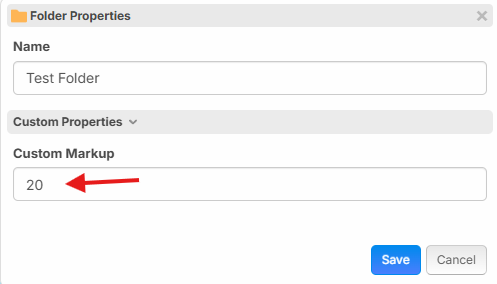
Custom Properties on Projects and Folders
Now you can attach additional data to your projects and folders specific to your workflow. This is especially useful when creating properties that will inherit down to takeoffs and items.
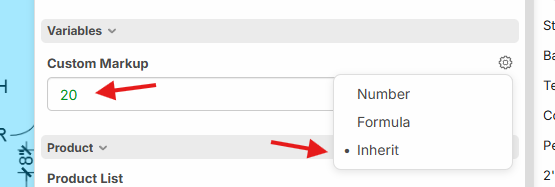
Custom Properties - Inheritance
This is showing an item that is in the folder shown above, and it's inheriting the Custom Markup. It shows in green when inheriting, and you can easily override the value. You could create a property at the project level and override it at the folder level, takeoff level, or item level.
Custom Properties - Default Mode / Default Value
Now you can specify a default mode and value for each custom property. In this example, we are applying a "Custom Markup" to folders, takeoffs and items. The Takeoffs and Items are set to inherit from the folder, but can be overridden at the takeoff level or the item level. Note: when you change these defaults, it applies to newly created takeoffs & items, not previously existing (intentionally to avoid changing numbers on old projects). We will be building tools to batch update existing properties on a project.

Custom Properties - Hidden by Default
If you want to make a custom property that can apply to Takeoffs, but you don't want it to apply to *all* Takeoffs, you can check this box "Hidden by Default".
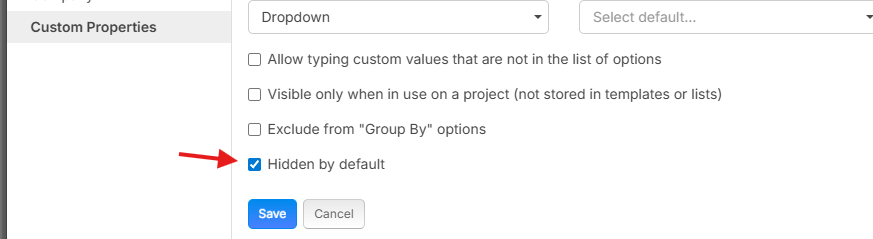
Then when you want to show the property on a specific Takeoff, Item, or Template, you can click the gear at the top of the properties popup, and click on the specific properties that you want to show.
Misc Additions
- Takeoff
- Ability to Copy/Paste takeoff objects to the same spot on a different page - Normally when you press Ctrl + V, it will paste near the mouse, but if you ensure your mouse is not above the image (such as above the pages sidebar or the toolbar at the top) when pressing Ctrl + V, it will paste in the exact same X,Y location that it was copied from on the original page.
- Variables in formulas can now be set to formula mode like other properties
- Hotkeys
- Tab - Toggle Box Mode / Point to Point Mode
- Alt + S - Toggle Snap
- Alt + P - Toggle PDF Snap
- Alt + W - Toggle Ortho Snap
- Alt + A - Toggle Auto Scroll
- Ctrl + Shift + V - Paste as New
- Enter to Start / Stop Takeoff on anything that is selected (same as clicking green dot or red dot)
- Colors
- 5X color palette size
- Random colors don't re-use - predefined color sequence
- Reports
- Items no longer require a parent to display in reports
- Option: Include takeoffs with no sections
- Dropdown properties now show additional columns for Code & Name
- Sidebars
- When clearing search, it restores expanded/collapsed state
- Searches gray folders
- Speed improvements
- Cloud tool is in box mode by default
- Ability to rotate pages 180
- Scaled checkbox on point counts
- Snap to corners of page
For all users that have tried zzTakeoff in the past, we have extended your free trial so you can test out the new features for 14 days.
Thank you for all your input to help us improve zzTakeoff 🙂🚀