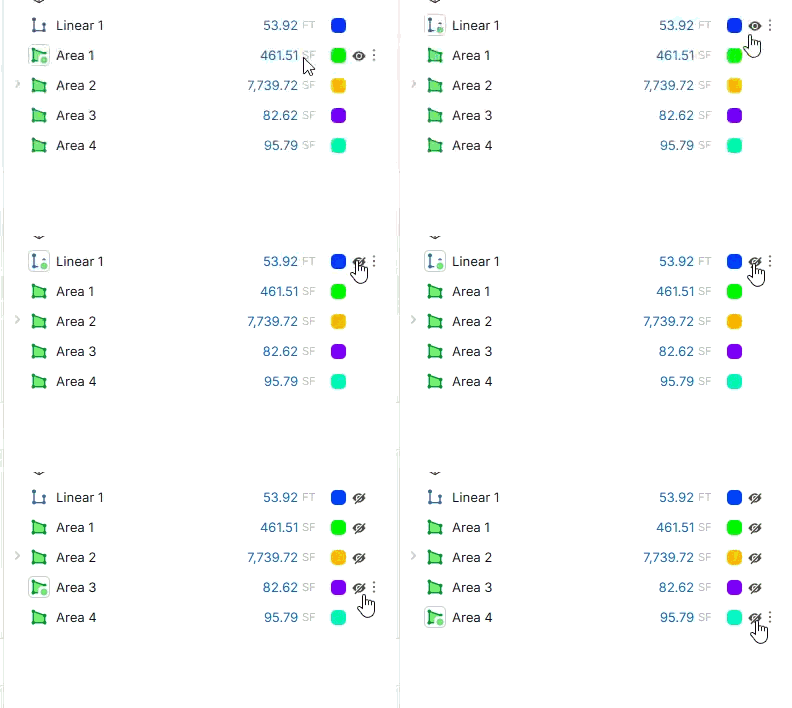









Hiding/Unhiding bulk QTO's from "Pages" viewport
Just wondering if there was a quicker way to check/uncheck from the "Pages" viewport?
I've tried selecting all or shift/control clicking the items and context menu and I've tried going to the main viewport and context menu -> Show All -> Takeoffs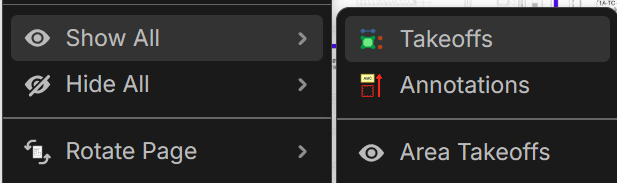
Other recommended strategies? I've learned a few months ago gray folders were not able to hide/unhide so I had to go back to folders for this functionality within the "Takeoffs" viewport

Hey Chaz! I'll forward this video to the dev team. We don't have a batch show/hide, but we could add one to the right-click menu (or to the Shift+Select logic).
👍1%22%2F%3E%3Ctext%20x%3D%2232%22%20y%3D%2233%22%20text-anchor%3D%22middle%22%20dominant-baseline%3D%22central%22%20font-family%3D%22Arial%2C%20sans-serif%22%20font-size%3D%2226%22%20font-weight%3D%22600%22%20fill%3D%22%23fff%22%3EVT%3C%2Ftext%3E%3C%2Fsvg%3E "Victor Tengowski")
Go to the reports tab, click on grouped by takeoff, click on columns, search for 'Hidden' then filter the column:
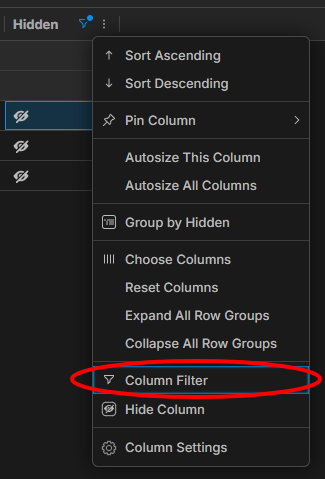
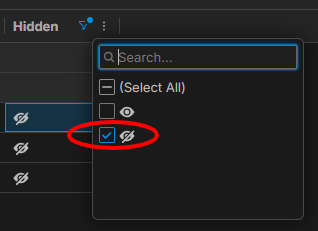
Then you can just click the icon in the report to unhide takeoffs. I created/saved a report specifically for this.
👍1
Thanks @Victor. I was playing around with this approach for a bit but didn't ever land on anything I could use and really prefer to stay in the main viewport
When you say "...click the icon..." does this mean each QTO item icon or is there an icon I can click on that makes all shift/control clicked icons hide/unhide?
You would have to click each hidden item, but as you click it filters out of the report. So, you can keep your cursor in one spot.
👍2